
Setup Instructions
for IP Telephony Programs

Step-by-step guides for setting up popular SIP clients, softphones, and programs for making calls over the internet.

Office desk phone with keypad and display, surrounded by blue icons for support, security, users, and analytics.
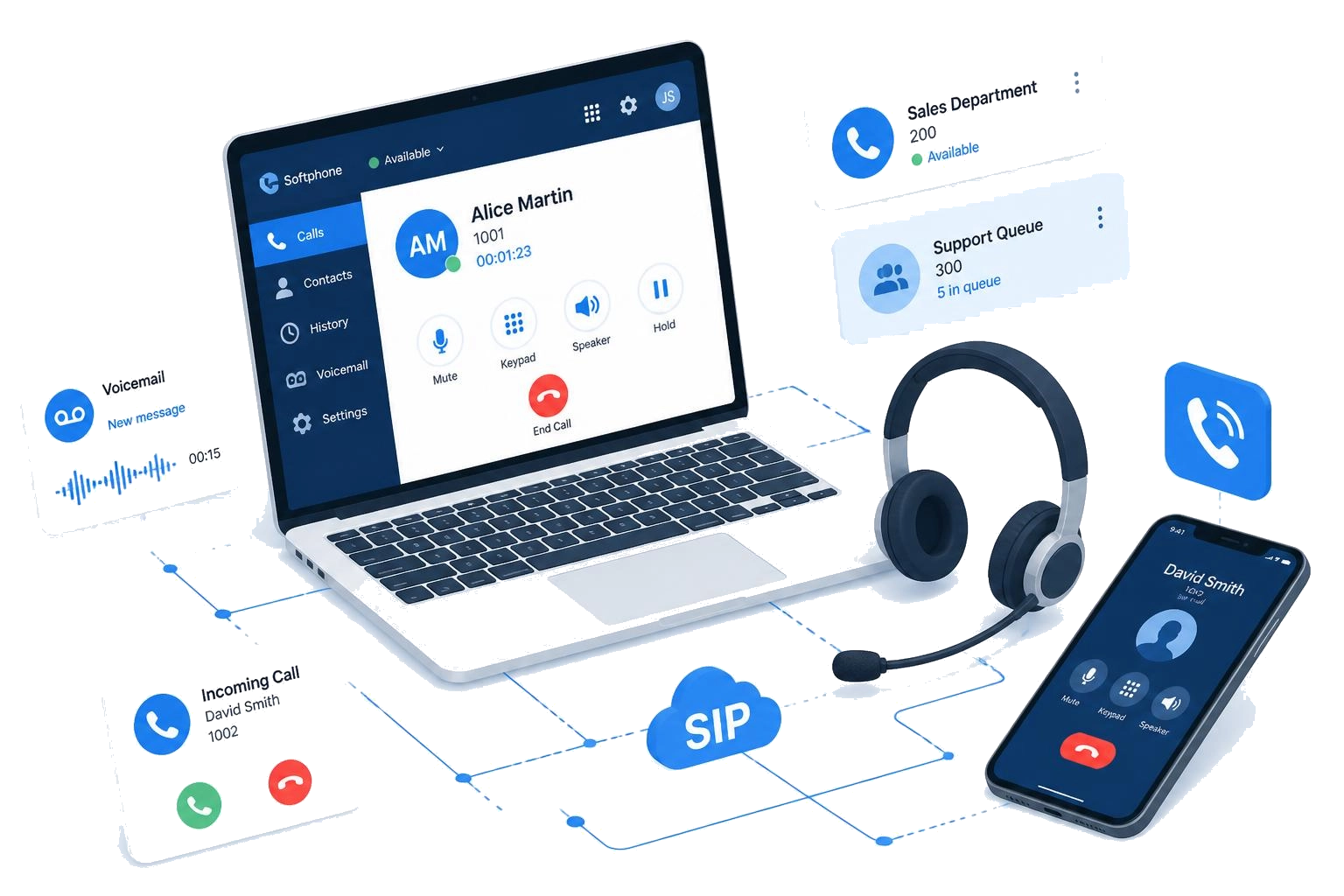
Illustration of a VoIP setup with a laptop showing a call interface, a headset, and a smartphone for communication.

Instruction Catalog for SIP Clients

Select your operating system and follow the step-by-step instructions to connect your Stream Telecom SIP account.


Instruction Catalog for Software and Equipment

Select your software or equipment manufacturer and follow the instructions to connect your Stream Telecom SIP account.

What These Instructions Are For

We have collected guides that will help you quickly launch IP telephony without calling a specialist — from registering the program to making your first call.

What You Need for Setup

Prepare all the data in advance — setup will take 3–5 minutes.

Common Setup Errors

Solutions to common problems when working with SIP programs.

Can’t Set Up the Program?

Stream Telecom specialists will help you connect your SIP account, configure the calling program, and check that telephony is working correctly.

Frequently Asked Questions

A SIP client is a program or application for making calls over the internet using IP telephony technology. With it, you can receive and make calls from a computer, smartphone, tablet, or IP phone without using a traditional telephone line.

A SIP client connects to the telecom operator’s server using a SIP login, password, and server address. After setup, the user can make calls through a landline, mobile, or multi-channel number connected to the IP telephony service.

To set up a SIP client, you usually need the following data:

SIP login — the username or account number;
SIP password — the password for connecting to the server;
SIP server — the address of the IP telephony operator’s server;
connection port — most often 5060 or another port specified by the operator;
protocol — UDP, TCP, or TLS, depending on the service settings.

Sometimes additional STUN server, codec, NAT, or outbound proxy settings may be required. If you connect Stream Telecom IP telephony, the required setup data is provided after the service is activated.

The SIP login and SIP password are issued by the IP telephony operator after the service is connected. This data can usually be obtained in your personal account, from your manager, or from technical support.

If you are already connected to Stream Telecom but do not know your SIP details, contact support or your manager. It is not recommended to share your SIP login and password with third parties, as they can be used to make calls from your account.

Yes, IP telephony can be set up on a smartphone. To do this, install a SIP application for Android or iOS, such as Zoiper, Linphone, Grandstream Wave, or another compatible app.

After installing the program, enter the SIP login, password, and SIP server address. After successful registration, the smartphone will work as a full-fledged work phone: it can receive incoming calls, make outgoing calls, and use the company number from anywhere with internet access.

If the SIP program does not register on the server, the reason is most often related to incorrect settings or internet connection problems. Check that the SIP login, password, server address, and connection port are correct.

Registration may also fail due to blocking by the router, firewall, antivirus, or internet provider. In some cases, changing the connection protocol, configuring NAT, enabling a STUN server, or restarting the application helps. If the problem persists, it is best to contact Stream Telecom technical support to check the account and connection parameters.

If there is no sound during a call, first check the microphone, speakers, or headset on the device. Make sure the SIP application is allowed to access the microphone and that the correct audio device is selected in the program settings.

If the equipment is working properly, the cause may be NAT, the router, firewall, or codec settings. Enabling a STUN server, changing the network, restarting the router, or changing the SIP application settings often helps. When using IP telephony, it is important that the internet connection is stable and does not block voice traffic.

Technically, one SIP account can sometimes be configured on multiple devices, but this is not always recommended. When one account is registered on several SIP clients at the same time, problems may occur with incoming calls, registration, sound, or incorrect call routing.

For stable operation, it is better to use a separate SIP account for each employee or device. This makes it possible to correctly receive calls, keep statistics, record conversations, and manage the company’s internal telephony.

Yes, Stream Telecom helps customers set up SIP programs and IP telephony. Specialists can advise what data to enter, how to configure the SIP client correctly, what to do if there is a registration error, and how to solve sound problems.

Support can help configure programs on a computer, smartphone, IP phone, or another compatible device. This is especially convenient for businesses that need to quickly launch corporate telephony and ensure stable call operation.